Limited time only: Get 35% off new licenses and upgrades
tel: +1 (800) 996-8617
  • Can You Create a 360 Product View from a Single Image?

    Sure, but if that image shows a real product someone intends to sell, forget about it. At least for now!

    AI can do impressive things. Those polished lifestyle shots and oddly beautiful concept visuals? Just look at this post's banner! For mockups, creative campaigns, or rough digital assets, AI is very useful.

    The problem is the 'generative' part of AI.

    If the AI only sees one product photo, it has to invent everything it cannot see like stitching, seams, logo placement, etc. Even when the service accepts more than one image, the same issue remains.

    We tried several popular services that claim to generate 360 product views from 1 to 4 product images and fed them 360 product photos of a shoe from our past shoots.

    It's probably the easiest product we've ever photographed in 360 degrees so the bar was low:

    The results were fun. Some were even useful in a 'digital asset for a game' kind of way. But would we put them on a real e-commerce product page? No.

    Exhibit A: pretty much everything is wrong here.

    Because the details were not reliable, shapes changed, materials drifted, small product features disappeared or moved. Some surfaces looked plausible but wrong. And that is the whole problem..

    Plausible is not enough when somebody is deciding whether to buy a physical product.

    Exhibit B: best result so far, but look at the patterns, text, and missing details.

    We have been in the 360 product image business for 15 years. The point of a 360 product view is to let a prospective buyer inspect the actual product from all angles, understand what they are buying, and make a more confident decision.

    That is why 360 product views help with buyer confidence and they do reduce returns and increase sales if done right.

    But this only works when the thing is accurate... and it's not:

    Exhibit C: lots of crooked patterns and guessed details.

    So the practical answer is simple. If you need a creative asset, experiment with AI. Have fun with it and put it to good use.

    If you need a real 360 product view for e-commerce, photograph the product properly or render it from an accurate 3D model. Use the recommended number of 360-degree images, and WebRotate 360 software is here to help:

    Get an instant 35% discount on the best 360 product view software. Ends Aug 5.

    Download v5 FREE 

    Real products still have to be photographed or 3D rendered. That's the part AI can't take.

  • Bigger, Cleaner 360 Product Views with WebRotate 360 v5.4

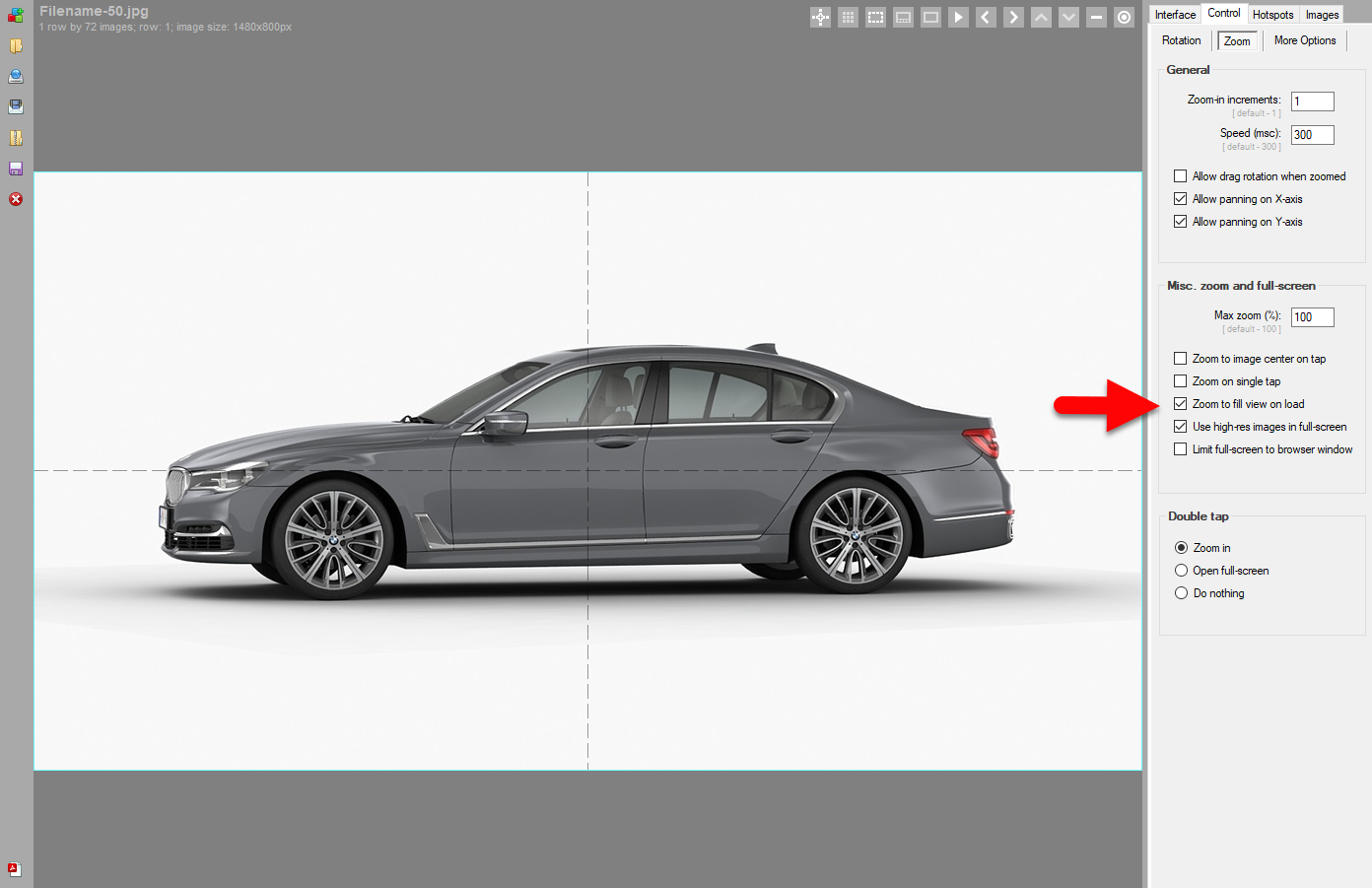
    The v5.4 update of WebRotate 360 Product Viewer will include a handy new option in SpotEditor called Zoom to fill view.

    Let's start with the problem. Many 360 product photography projects and even 3D renders are not shot or rendered on a perfectly uniform background. It could be a subtle grey studio gradient, a floor shadow, or a real-world environment such as a car photographed in 360 on a parking lot.

    When images like these are imported into SpotEditor and published in a responsive viewer, extra empty margins around the image can stand out on different screen sizes. Viewer controls may look detached from the 360 product view, or the surrounding space may simply look odd.

    To help with this, Zoom to fill view scales the images to cover the viewer area and remove empty margins around your 360 product spins or 3D product views. Depending on the image and viewer aspect ratio, the edges may be cropped slightly, so it's worth previewing the result before publishing online:

    To enable it in SpotEditor, go to: Control -> Zoom -> Misc. and check Zoom to fill view on load and re-publish.

  • Accelerate Your Blender Workflow with WebRotate 360 Turntable Animator

    If you've been rendering products in Blender and want interactive 360-degree or multi-row 3D product views ready for web, mobile, or marketplace use, without rigging cameras and keyframes from scratch every time, the WebRotate 360 Turntable Animator for Blender is built to streamline that process. This plugin brings powerful 360 spin automation, hotspot support, and web publishing integration directly into Blender's familiar interface.

    360 product spins made simple (single & multi-row)

    Whether you need a standard 360 spin or a more advanced multi-row 3D product view, Turntable Animator takes the guesswork out of setup. It uses Blender's Scene Properties panel and viewport as your "viewfinder" so you can frame your model, set the number of frames per row, and automatically generate a clean turntable animation ready for rendering. This brings consistency and speed to your workflow, especially for eCommerce catalogs with many SKUs.

    Hotspots that help sell

    Interactivity is key for product engagement, and our Blender plugin lets you add hotspots directly in your scene.

    • Point hotspots (via Blender "empties") to call out features.
    • Custom polygonal hotspots using meshes or vertex groups for precise clickable areas. 

    These can be extended later in the WebRotate 360 SpotEditor with rich content, video, images, HTML, tooltips, and even custom actions for interactive walkthroughs.

    Built for web publishing

    Turntable Animator supports multiple output targets.

    • Standalone 360 product image sequences (great for marketplaces like Amazon).
    • Interactive 360 assets for web and mobile using WebRotate 360 Product Viewer (free version).
    • SpotEditor projects for more advanced publishing and styling. 

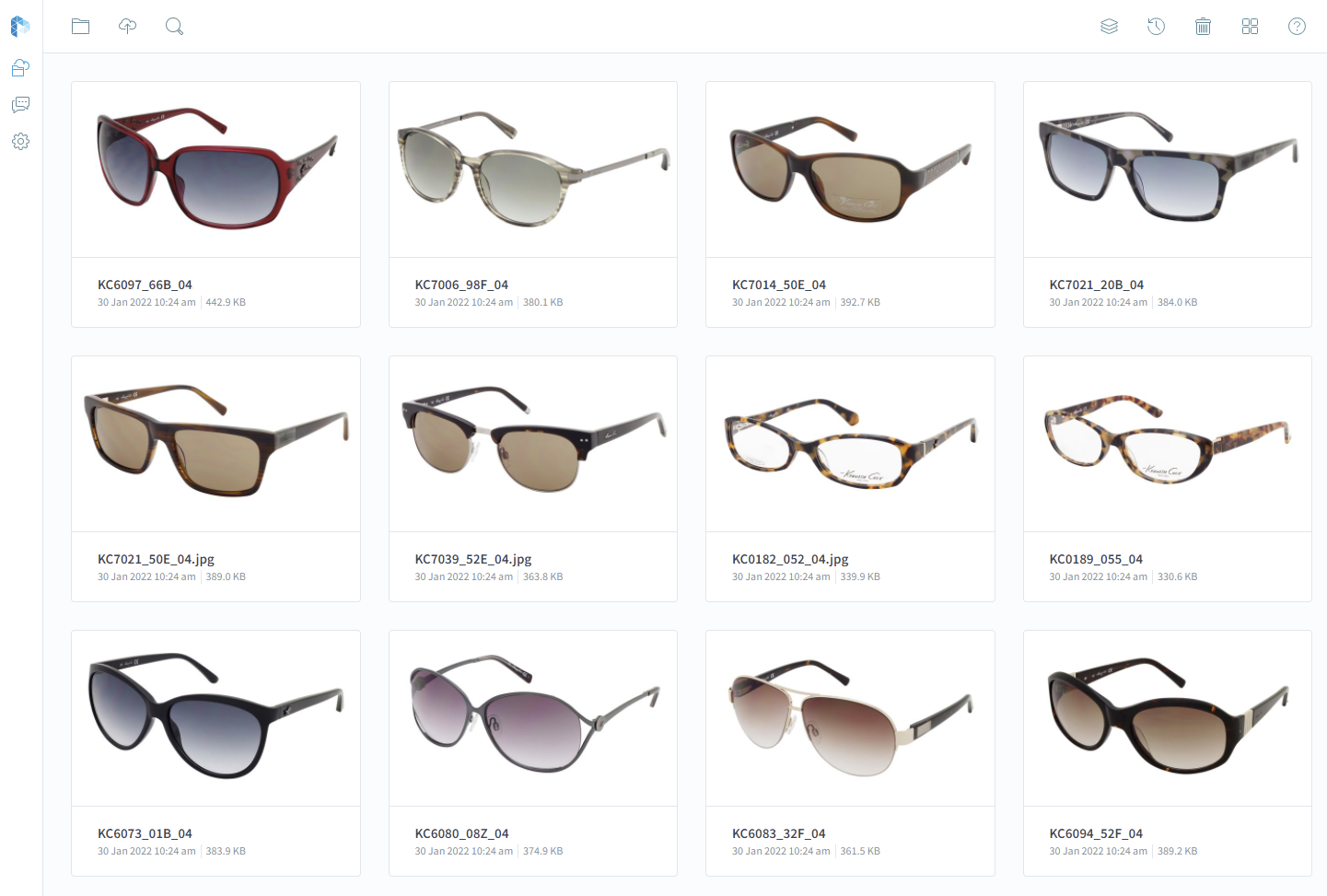
    Rendered output works with WebRotate 360's broader ecosystem, including CMS and eCommerce plugins and our optimized PixRiot CDN with analytics and collaboration, so teams and agencies can deliver polished product experiences faster.

    Quick start

    • See our complete plugin user guide.
    • Get the Blender plugin here.
    • Install the plugin (comes as a normal .zip add-on) and optionally install QuickView for instant previews. 
    • Setup your animation by choosing a project folder, selecting your object, and positioning your view, no camera rig required. 
    • Build your target, previewing with fast renders before finalizing high-quality outputs.

    If you need help optimizing your cloud publishing setup or integrating 360 product views into your CMS or eCommerce platform, just let us know!

    Get Turntable Animator

  • Work Faster with Teams in PixRiot

    New Teams feature in PixRiot lets you add multiple users to the same account with defined roles, so projects stay organized and secure. Four roles are supported: Admin, Editor, Viewer, and Billing.

    Roles at a glance:

    • Admin: Full control of the account. Manage members, settings, and billing.
    • Editor: Upload and manage assets. Suitable for producers and vendors. 
    • Viewer: Read-only access. Ideal for clients and stakeholders.
    • Billing: Manage subscription and invoices, view analytics without access to assets.

    How to setup:

    • Open PixRiot dashboard and go to Settings -> Team -> Invite more or click your avatar in the top right corner and select Invite User.
    • Add teammates by email.
    • Assign a role (Admin, Editor, Viewer, or Billing).
    • Send invites. Teammates accept via email and join your PixRiot workspace by filling out a quick signup form.
    • Admins can remove existing users at any time.

    For external collaboration, use PixRiot's folder sharing with passwords and configurable Editor/Viewer folder access.

    Request free PixRiot account

Subscribe to our newsletter

Sign up to our newsletter to keep a pulse on our latest developments, informative posts and beta releases. We don't abuse it!

Signup