
WebRotate 360 SpotEditor v5.4 can take a product video and turn it into the 360 image set for a new project.
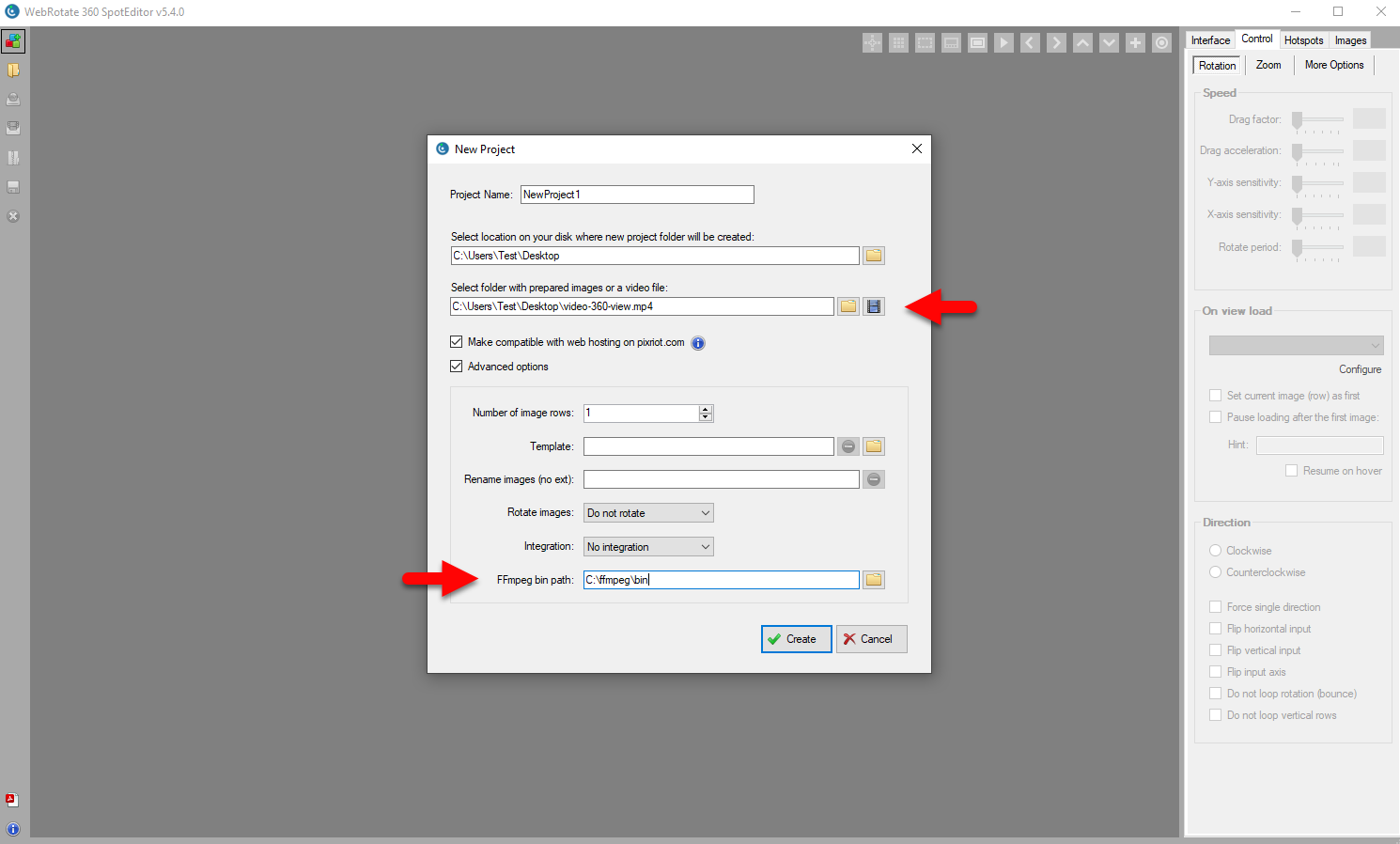
On the New Project form, the field labeled Select folder with prepared images or a video file now accepts a video clip as well as a folder. Click the film button beside it and choose a MOV, MP4, AVI, MKV, WebM, WMV, or M4V.
When you click Create, SpotEditor asks how many frames to extract. It samples the clip at even intervals across its length and uses those stills as the project images. The frame count you pick is remembered for the next time.
The extraction runs through FFmpeg that is installed separately.
On a Mac, Homebrew is enough, so if Homebrew is installed just open terminal and run:
brew install ffmpegHomebrew registers the ffmpeg command, so leave FFmpeg bin path empty on the Project Wizard. You do not need to browse to a folder or type a path.
On Windows, download a current Windows build from ffmpeg.org, unzip it, and open the bin folder inside. That folder should contain ffmpeg.exe and ffprobe.exe.
In the New Project, check Advanced options and set FFmpeg bin path to that bin folder (see the previous screenshot), using the folder button next to the field. SpotEditor saves the path, so you only set it once.
After that, starting a project from video is the same on both platforms: pick the clip, enter a frame count that matches how smooth you want the spin, and let the wizard build the project. A higher count gives a finer 360 spin rotation as discussed in this blog post.